Guide

Setting up the Intune Asset Management Integration with BlueTally

BlueTally lets you save time and headaches by automatically adding devices from Intune into the app as assets. Setup your integration in only a few steps:

Login to your Azure account.
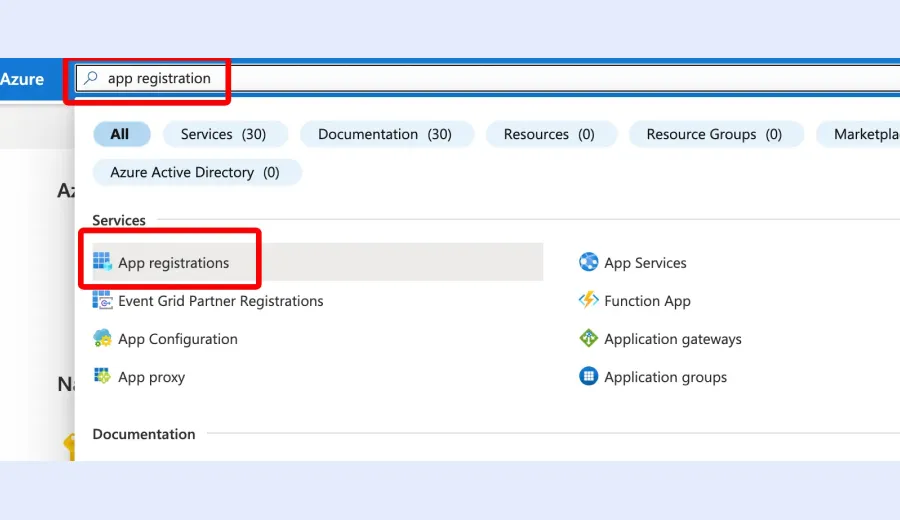
1
Search for "App registrations"
Azure App Registration | BlueTally™
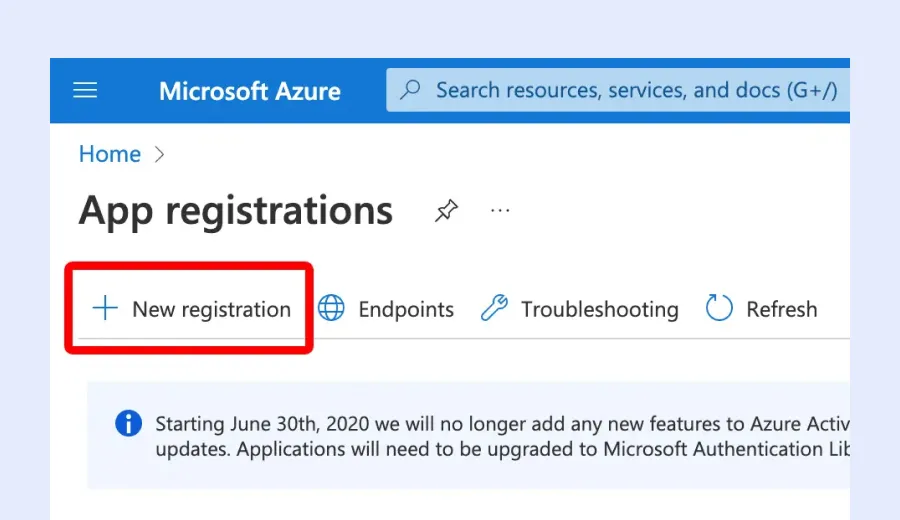
2
Click on "New registrations"
Microsoft Azure New Registrations | BlueTally™
3
Give the app a name (like BlueTally Intune), select the first Supported account type and click Register
Intune Asset Manager | BlueTally™
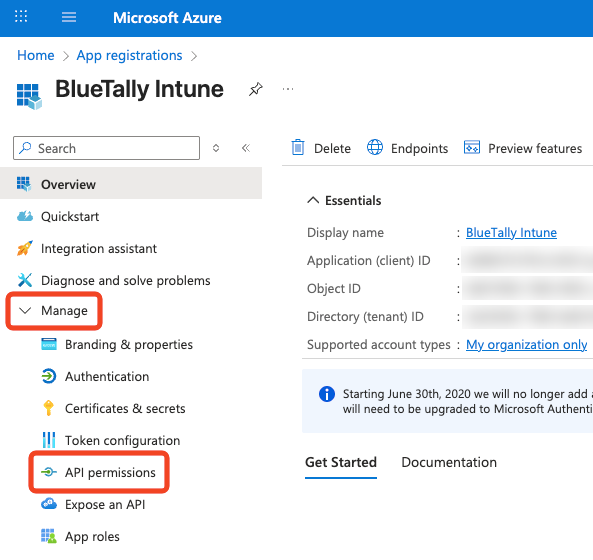
4
Click on Manage, then on API permissions in the left menu bar
5
Click on "Add a permission" and then "Microsoft Graph"
Intune Asset Manager permission | BlueTally™
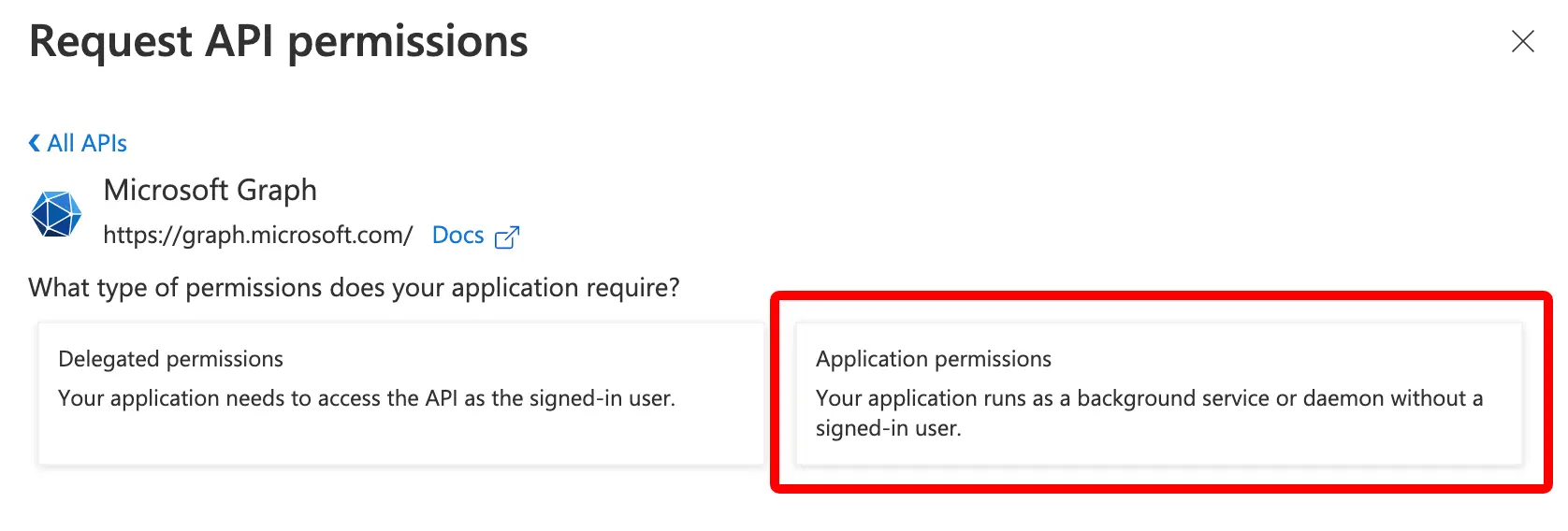
6
Click on "Application permissions"
Intune Asset Manager Application permissions | BlueTally™
7
Search "DeviceManagementManagedDevices" (case sensitive), and then tick the DeviceManagementManagedDevices.ReadAll option and click "Add permissions"
Intune Asset Manager Device Management | BlueTally™
8
Do the same for "Device.read.all" (case sensitive)
Intune Asset Manager Request API Permissions | BlueTally™
9
Do the same for "Directory.Read.All" (case sensitive)
Intune Asset Manager Request Api permissions | BlueTally™
10
Click on the dots all the way on the right side of the User.Read permission, then click on "Remove permission"
Intune Asset Manager Api permission | BlueTally™
11
Click on "Grant admin consent for Default Directory" and "Yes" in the confirmation
Intune Asset Manager | BlueTally™
12
Click on "Certificates & secrets" in the left menu bar
Intune Asset Manager Certificates & Secrets | BlueTally™
13
Click on "New client secret", give it a name (like BlueTally Key), set the expiration to "24 months" and click "Add"
Intune Asset Manager Certificates & Secrets | BlueTally™
14
Copy the "Value" and note it down for later
Intune Asset Manager Certificates & Secrets | BlueTally™
15
Click on Overview in the left menu bar
Intune Asset Manager Overview | BlueTally™
16
Copy the "Application (client) ID" and note it down for later
Intune Asset Manager Overview | BlueTally™
17
Click on "Endpoints" and then copy the "OAuth 2.0 token endpoint (v2)" and note it down for later
Intune Asset Manager Oauth 2.0 | BlueTally™
18
Open the Settings in your BlueTally account and paste in the values that you noted down earlier. Then, test your connection to make sure it's valid, and then complete the configuration of the integration here.

That's it! It will take around ~10 minutes for the first transfer to complete.

In order to automatically checkout the assets to employees, they have to already be added as an Employee in the app. We recommend setting up our SCIM integration first.

If you enable the Merge option, assets added to BlueTally with the same "Asset ID" as the "Device Name" (or the field you set in "Map Asset ID to") of a device in Intune, will have the fields "Asset Name" and "Serial Number" overwritten in BlueTally. That way, you can keep the full history of assets you already added to BlueTally, while getting the most important details from Intune.

All new devices added to Intune will automatically be added as an Asset in BlueTally, and if automatic checkout has been enabled, they'll be automatically checked out to their assigned user in Intune as well. If the device wasn't assigned to anyone in Intune at the time of first sync, it will be automatically checked out once it's been assigned a user in Intune.

If an asset is already in the app with the same Asset ID as a device in Intune, it will be skipped (unless you enable the Merge option).

If you mapped the Asset ID in BlueTally to a field in Intune that is empty for a device (for example, mapping the Asset ID to the Device Name which can be blank), the device won't be added to BlueTally - as BlueTally requires the Asset ID field to have a unique value.

To learn more about how this integration works, please refer to our knowledge base article.

If you have any questions regarding this integration, please don't hesitate to reach out to us and we'll assist you with your setup!

Looking for Intune asset management features and benefits?
See our Intune Asset Management Integration page for a complete overview.