


BlueTally lets you save time and headaches with our Single Sign-on integration with OneLogin that lets your team members log in and use the app without the need to manually create accounts and new passwords.
Log in to your OneLogin account
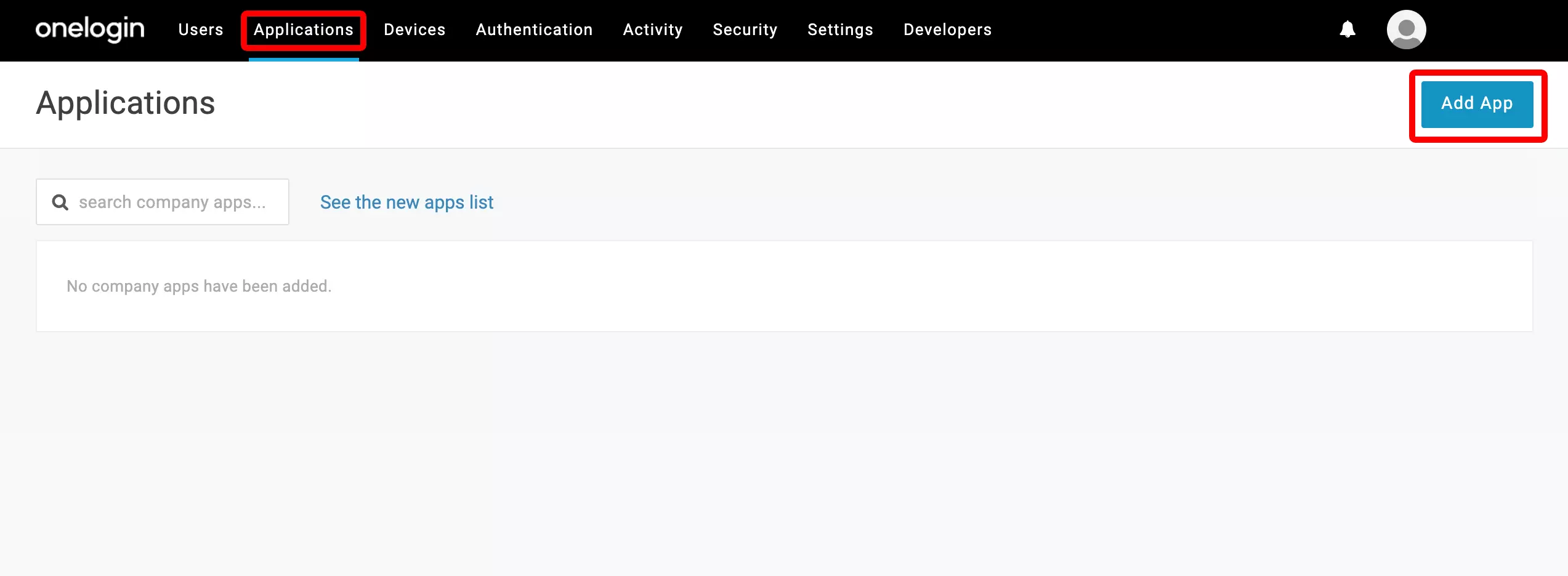
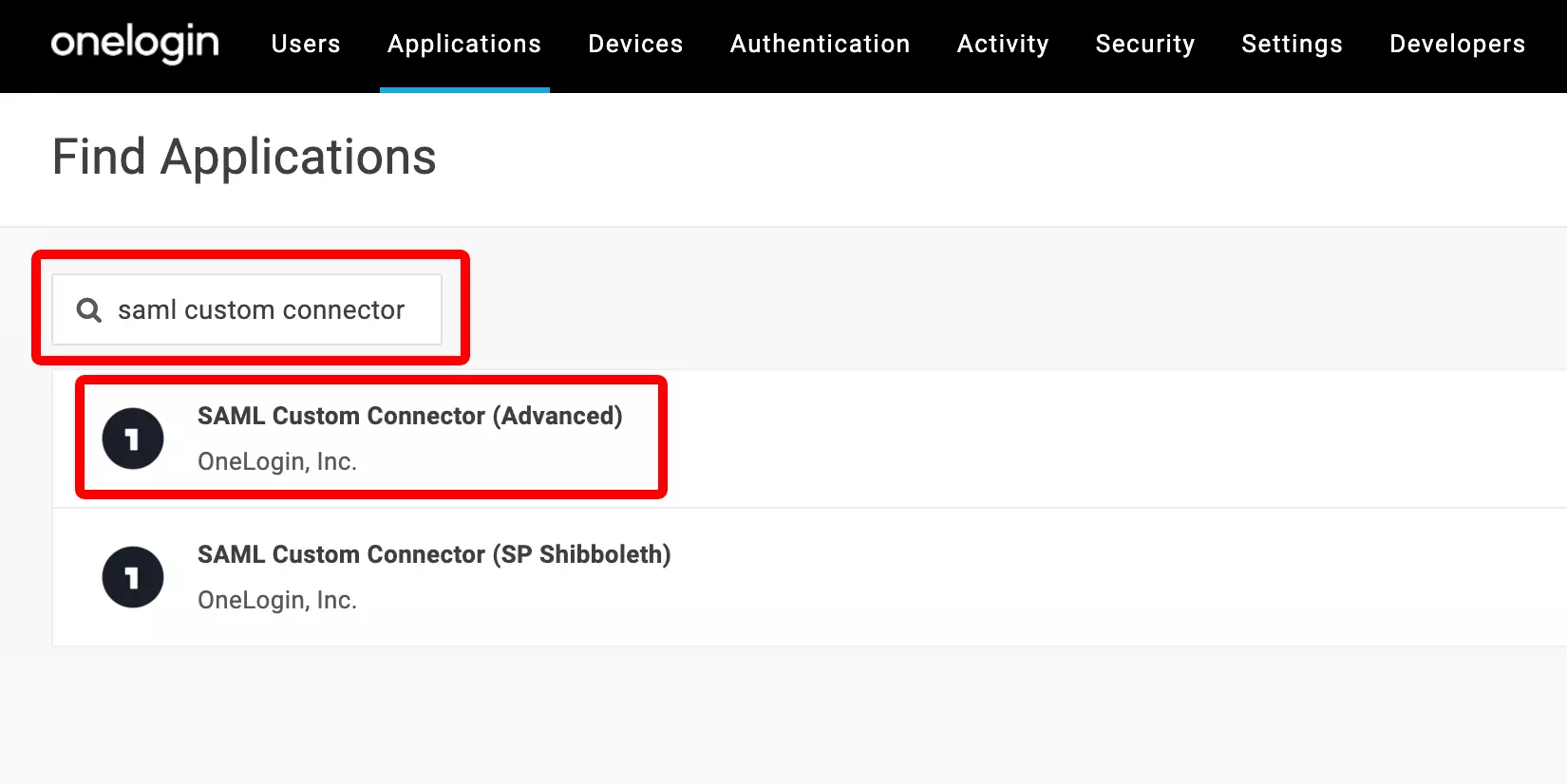


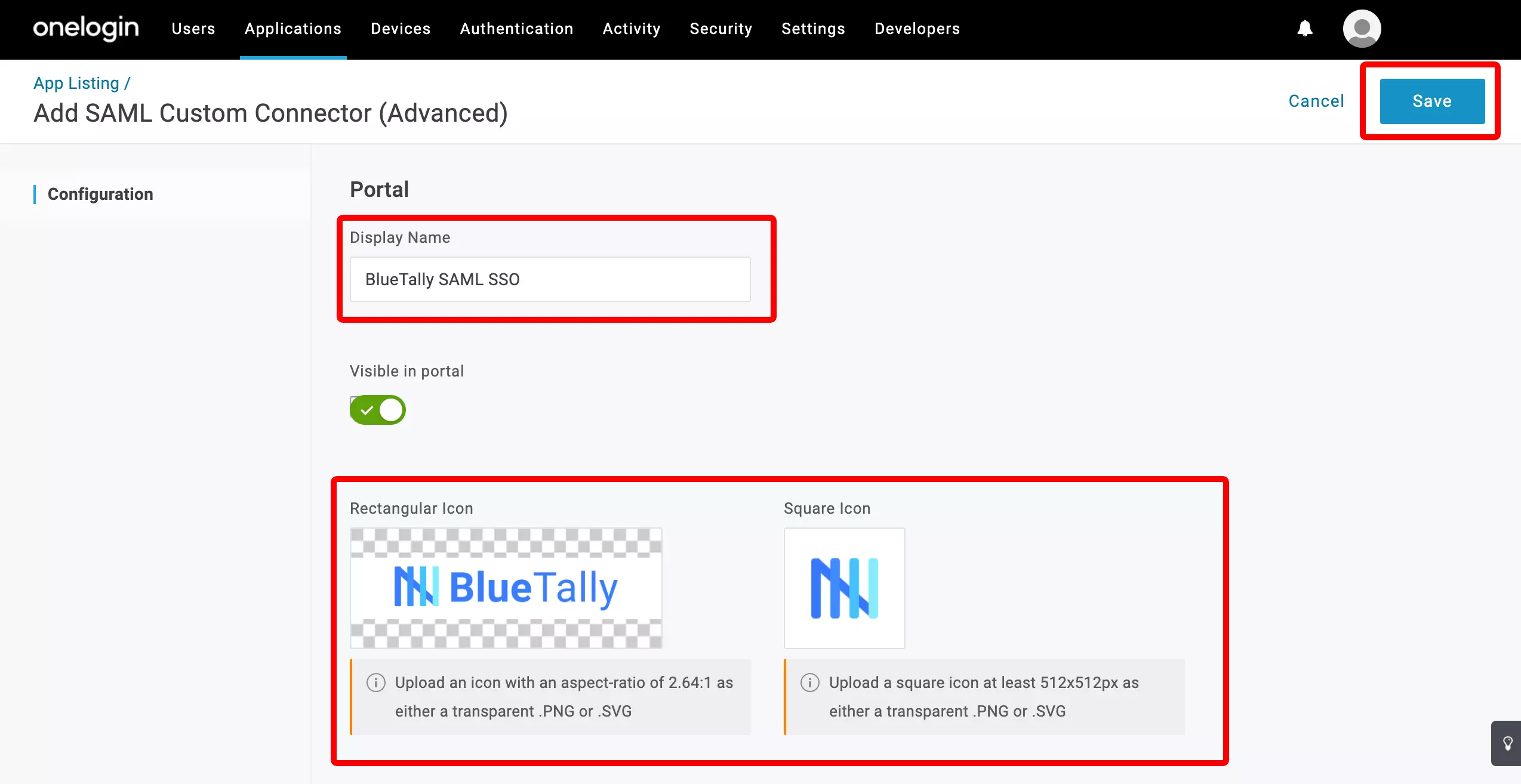
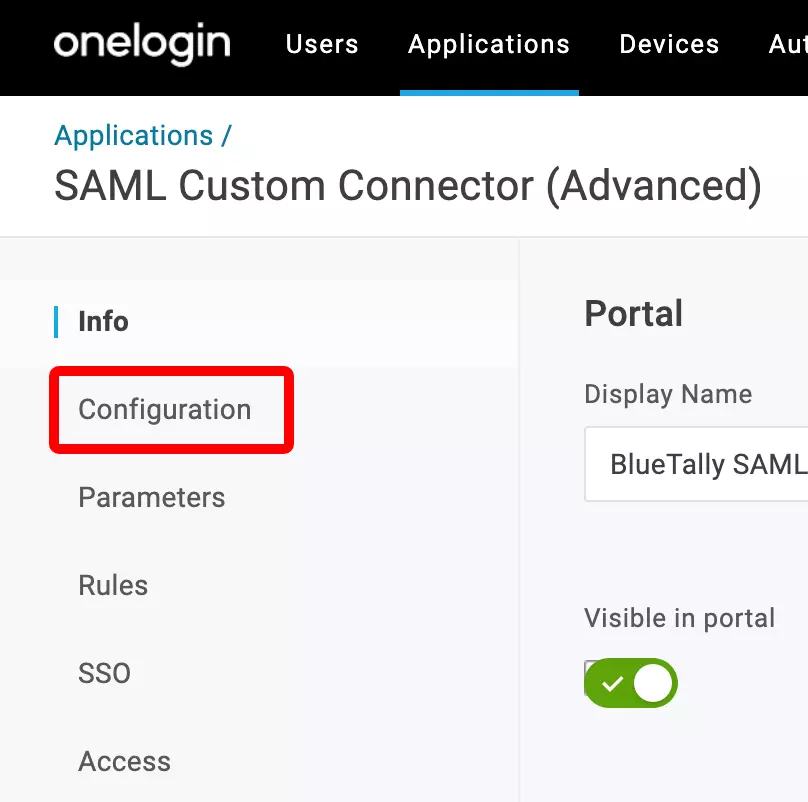
(replace SSOID with the SSO ID from your BlueTally account settings)
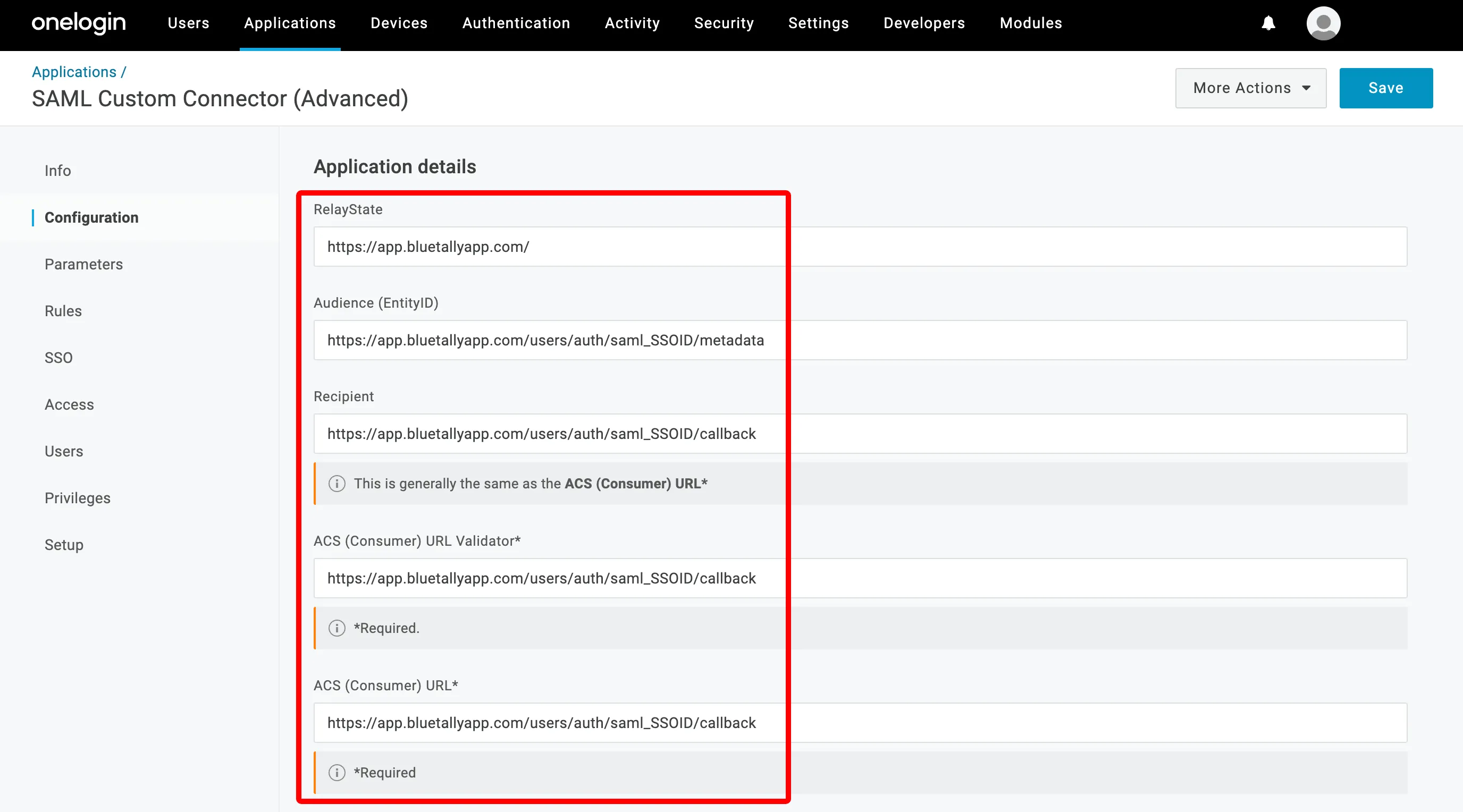
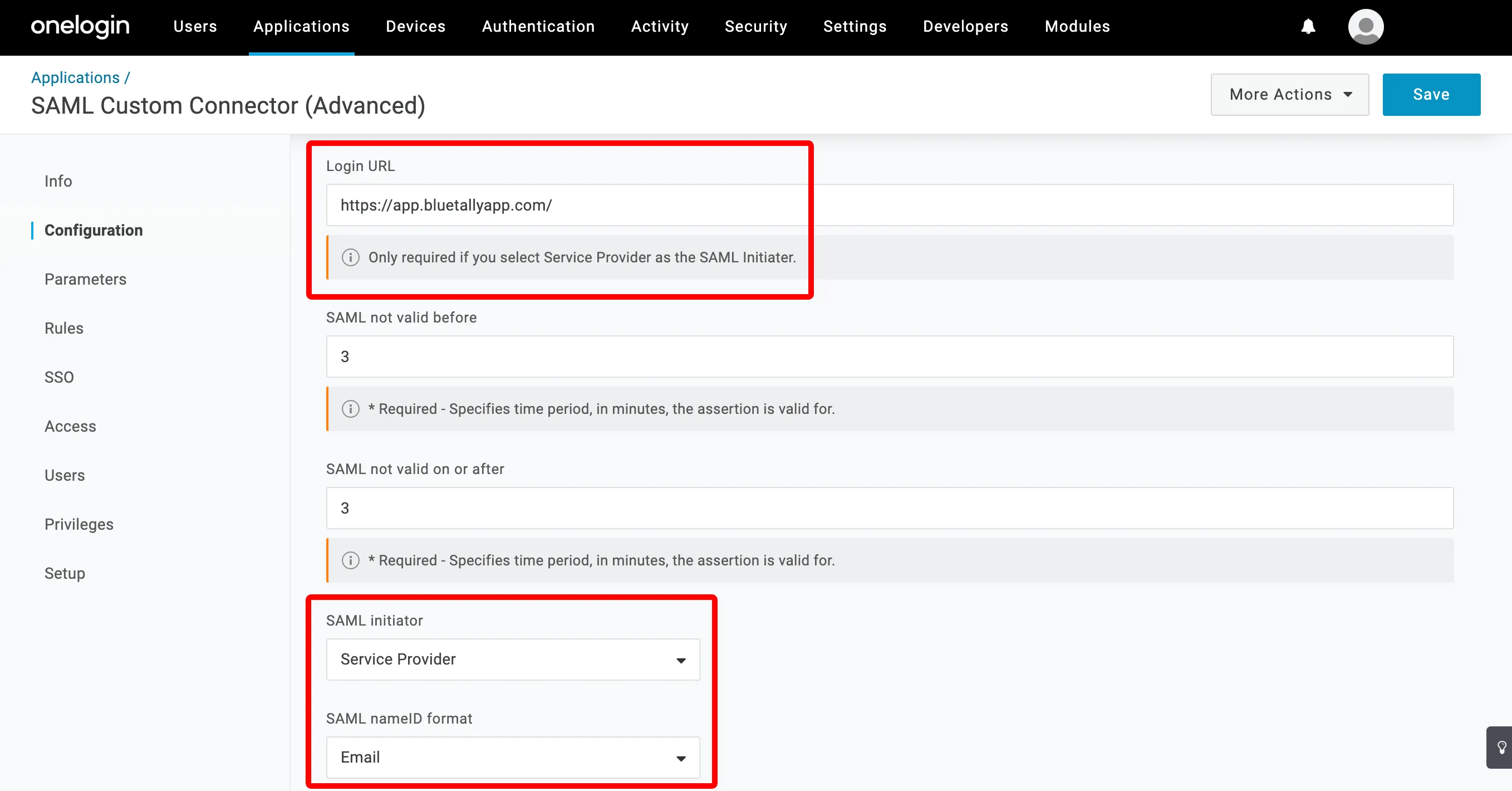
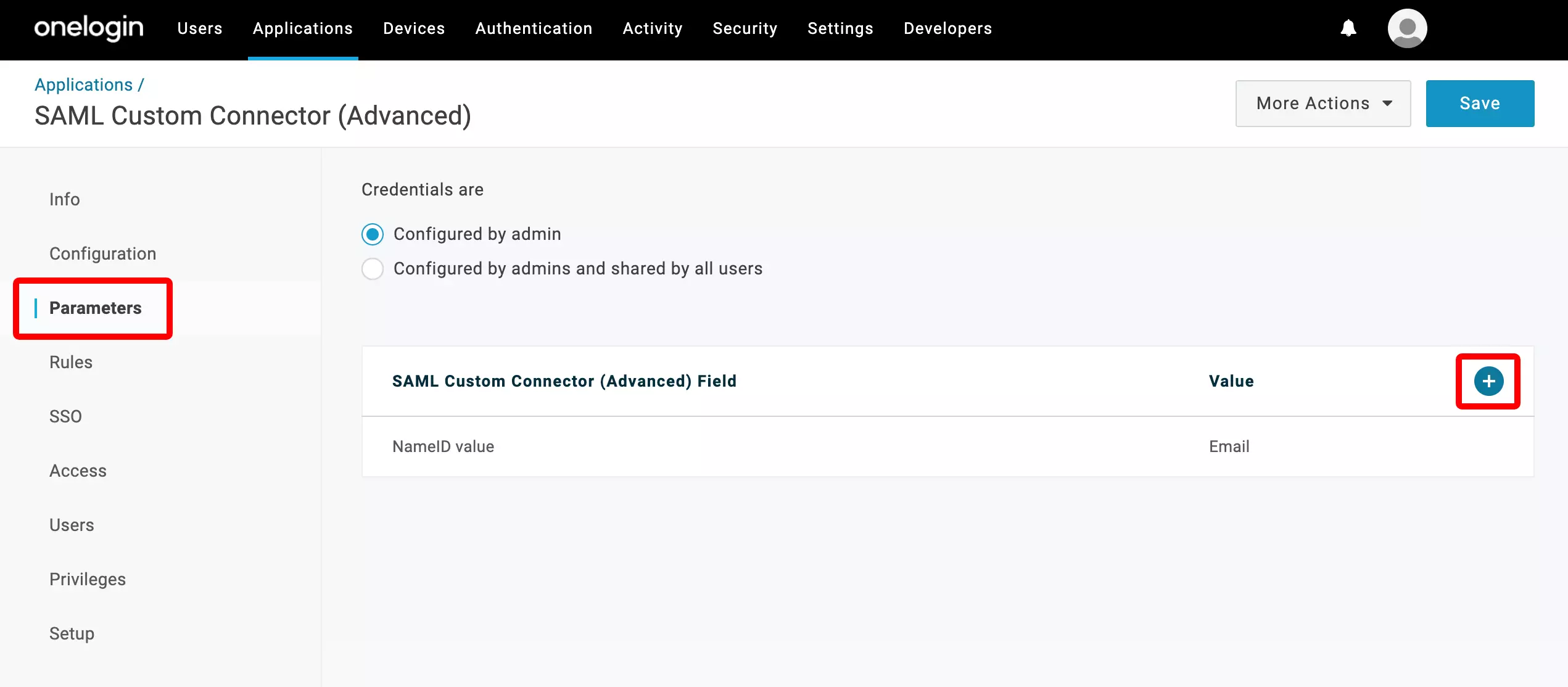
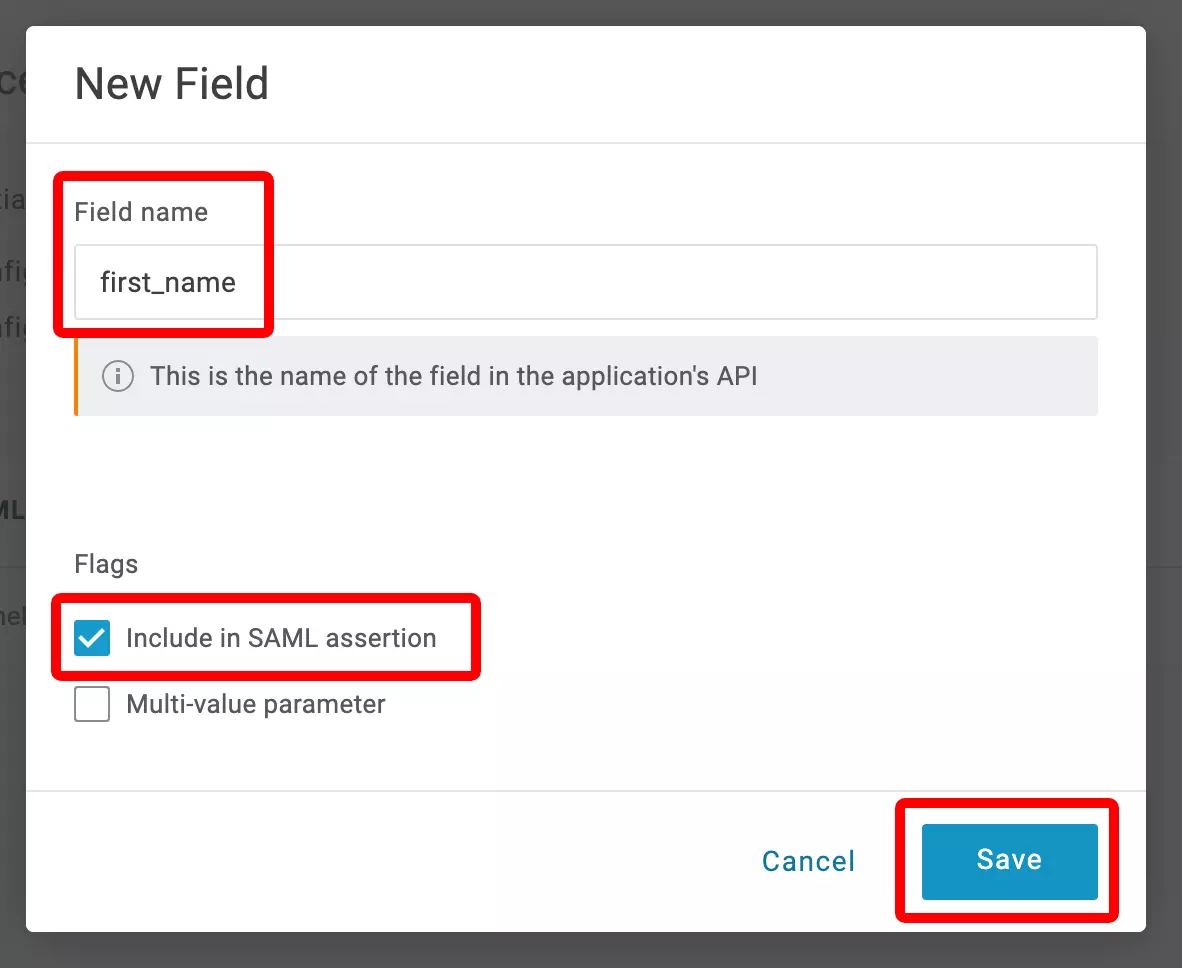
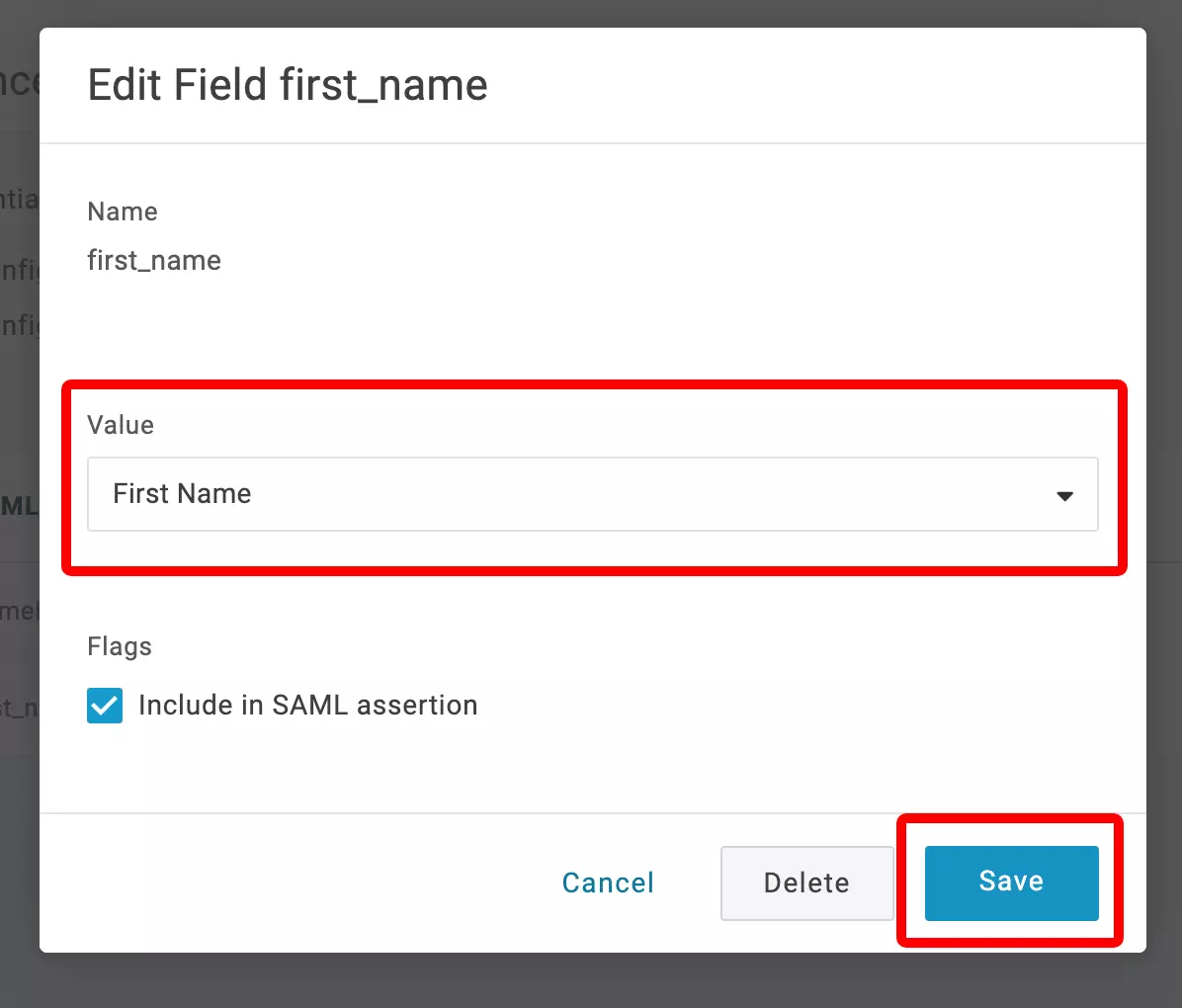
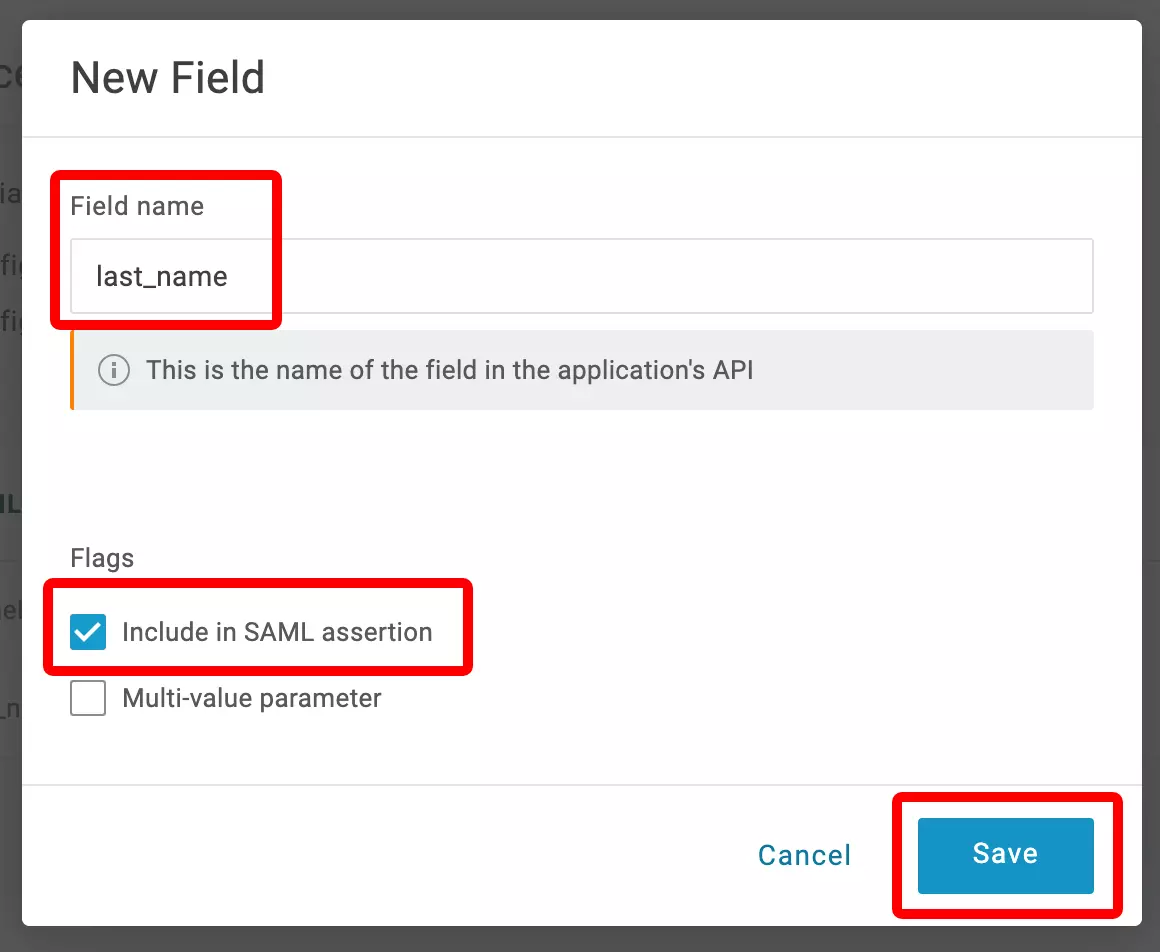
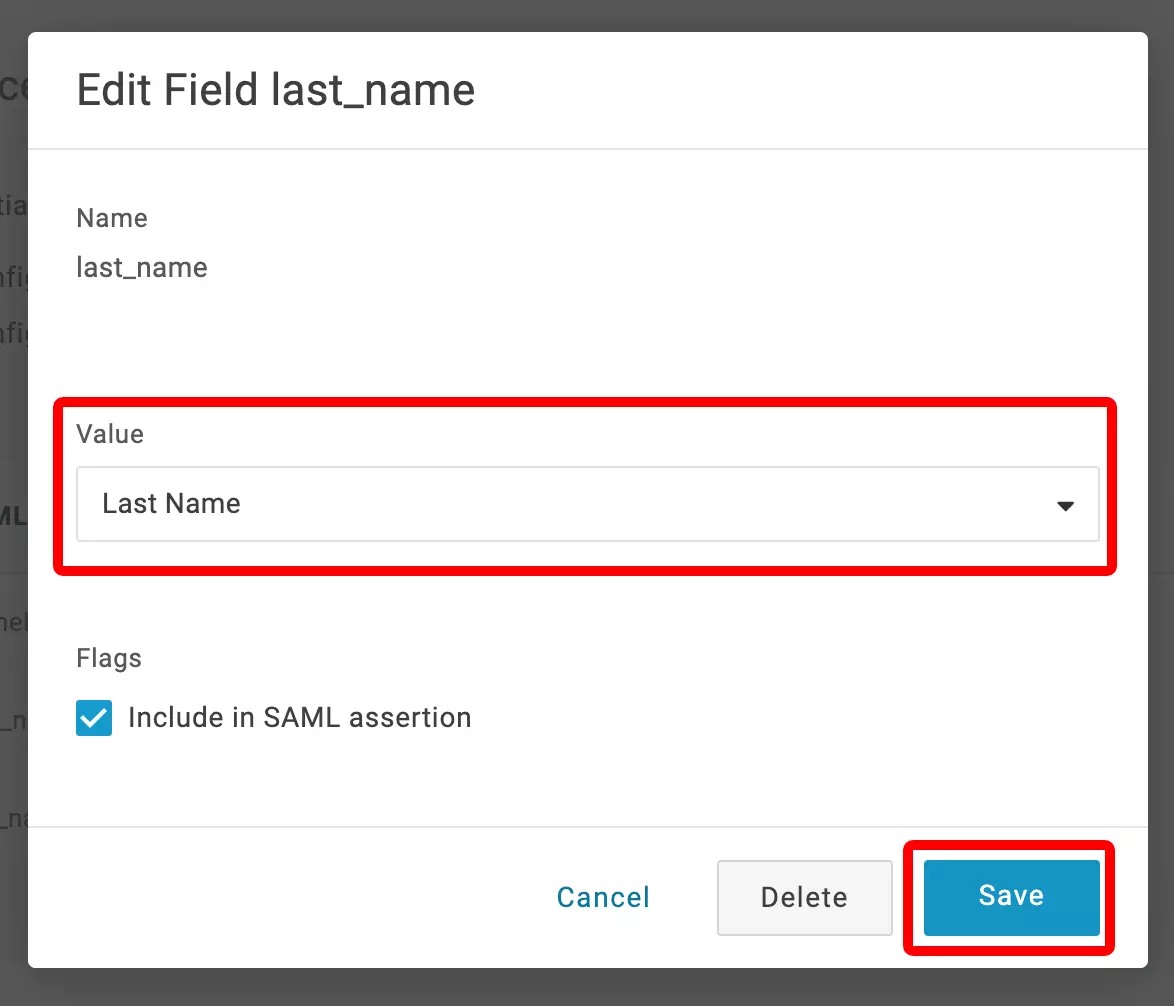
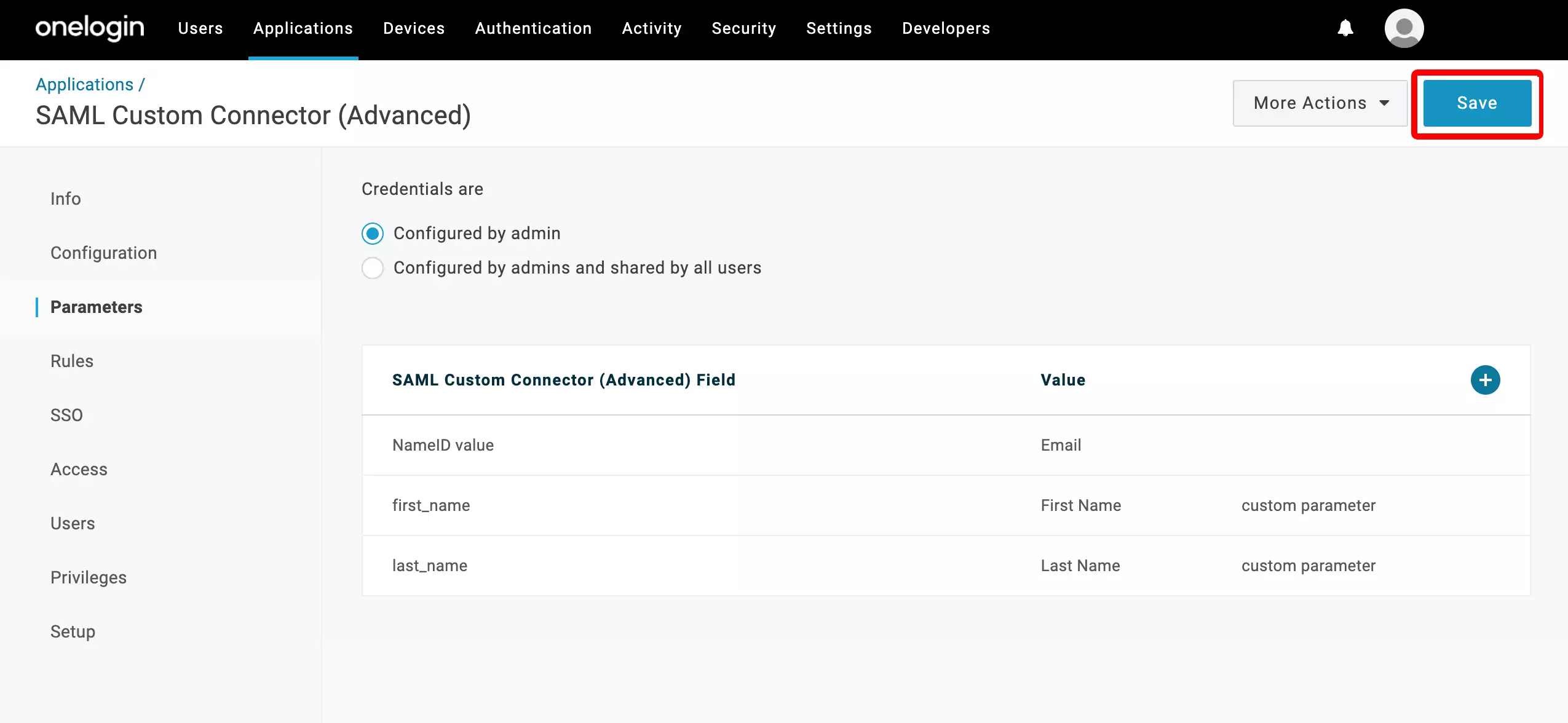

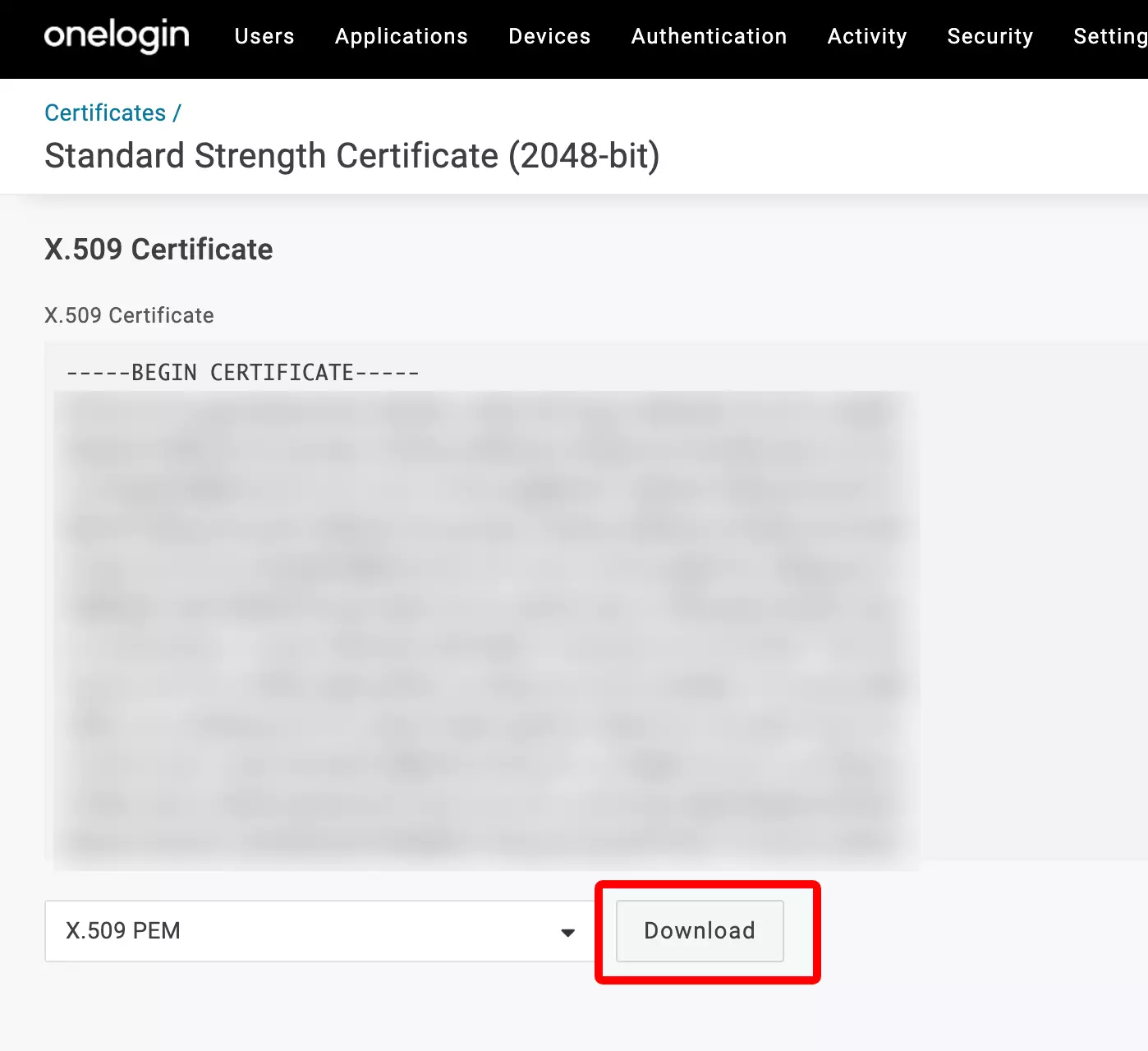
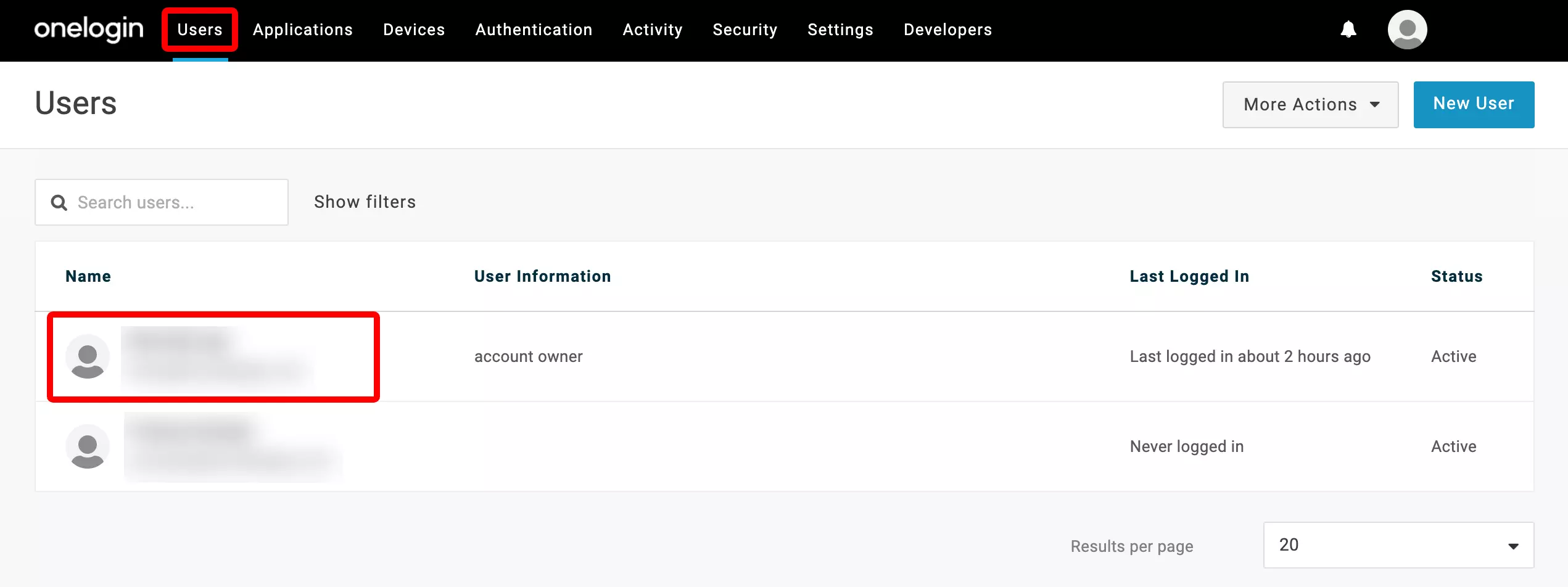
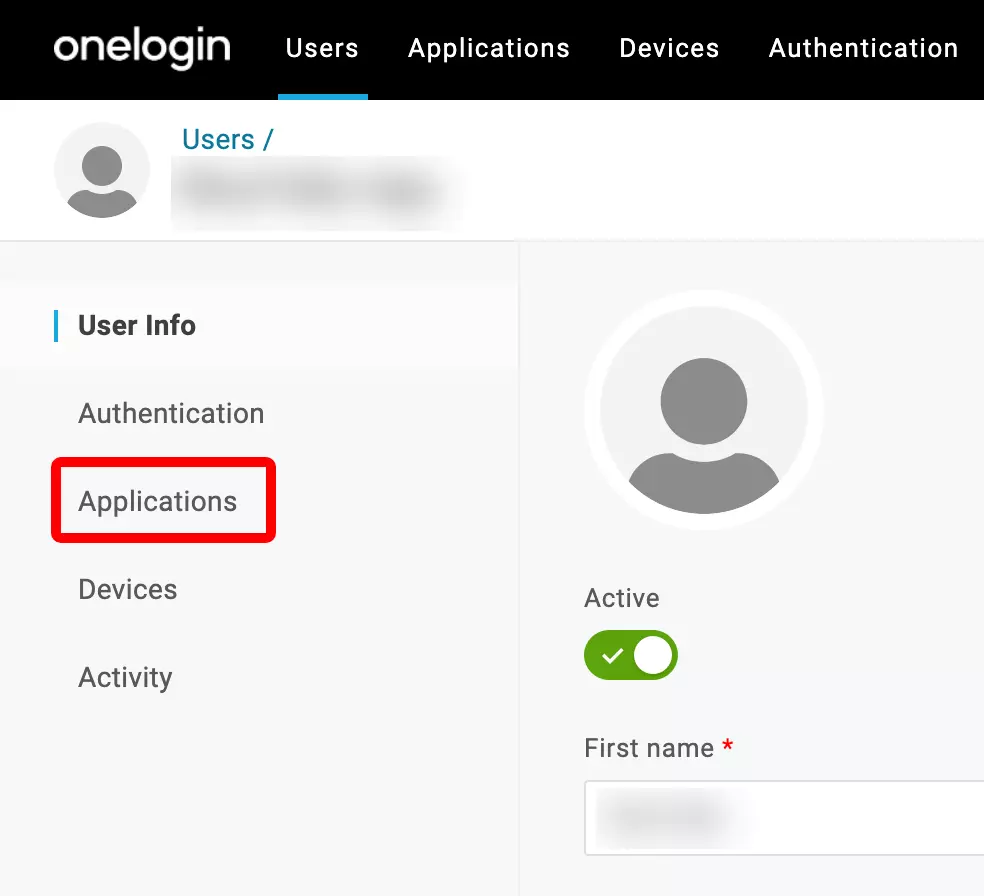
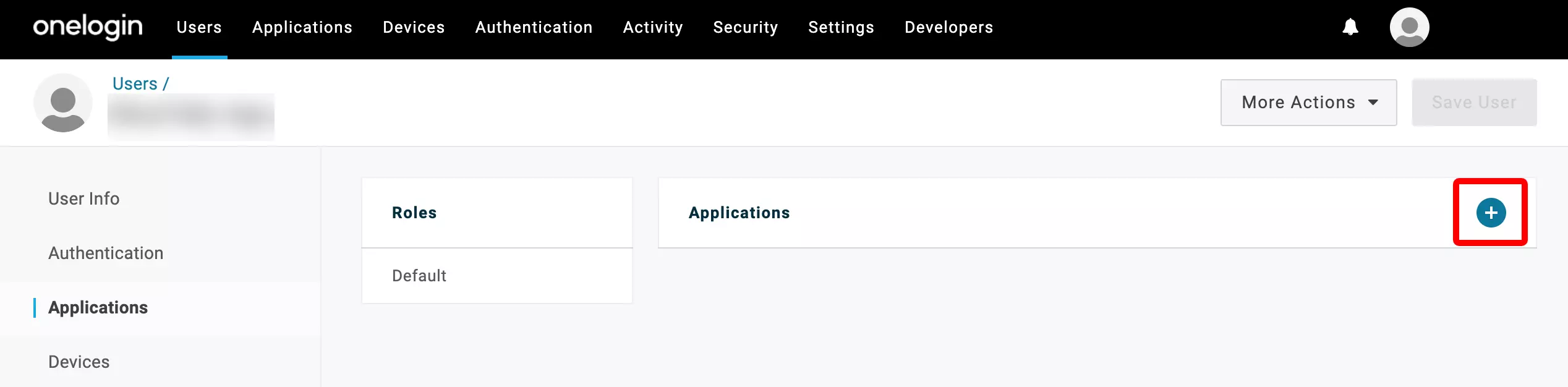
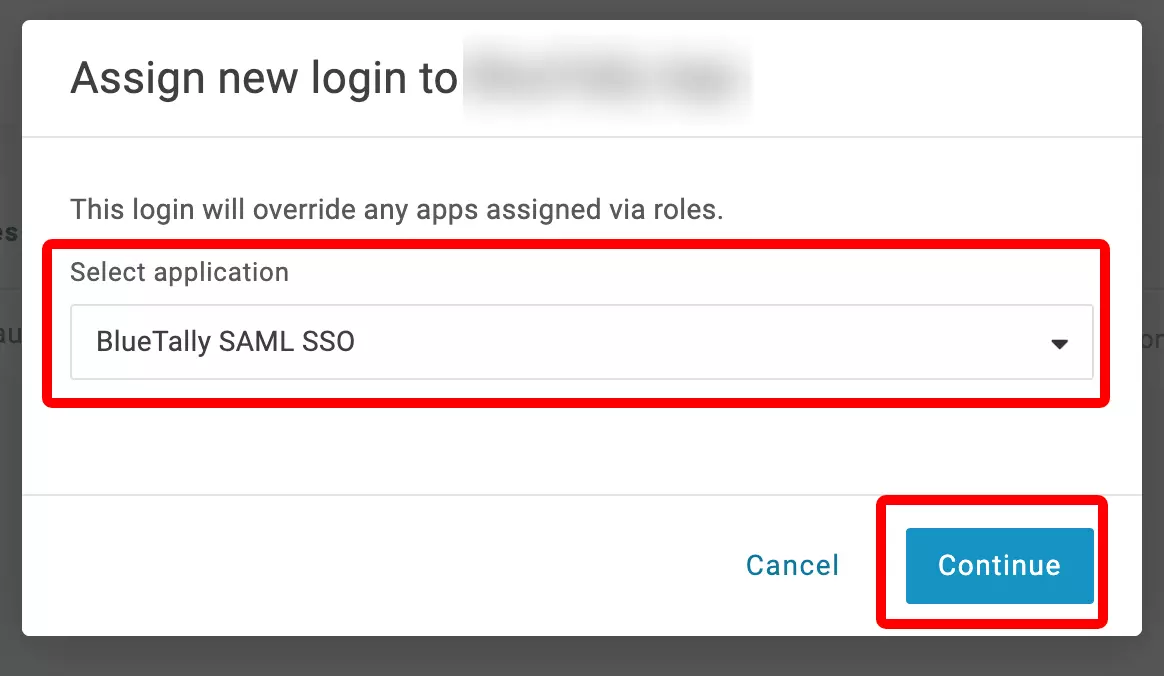

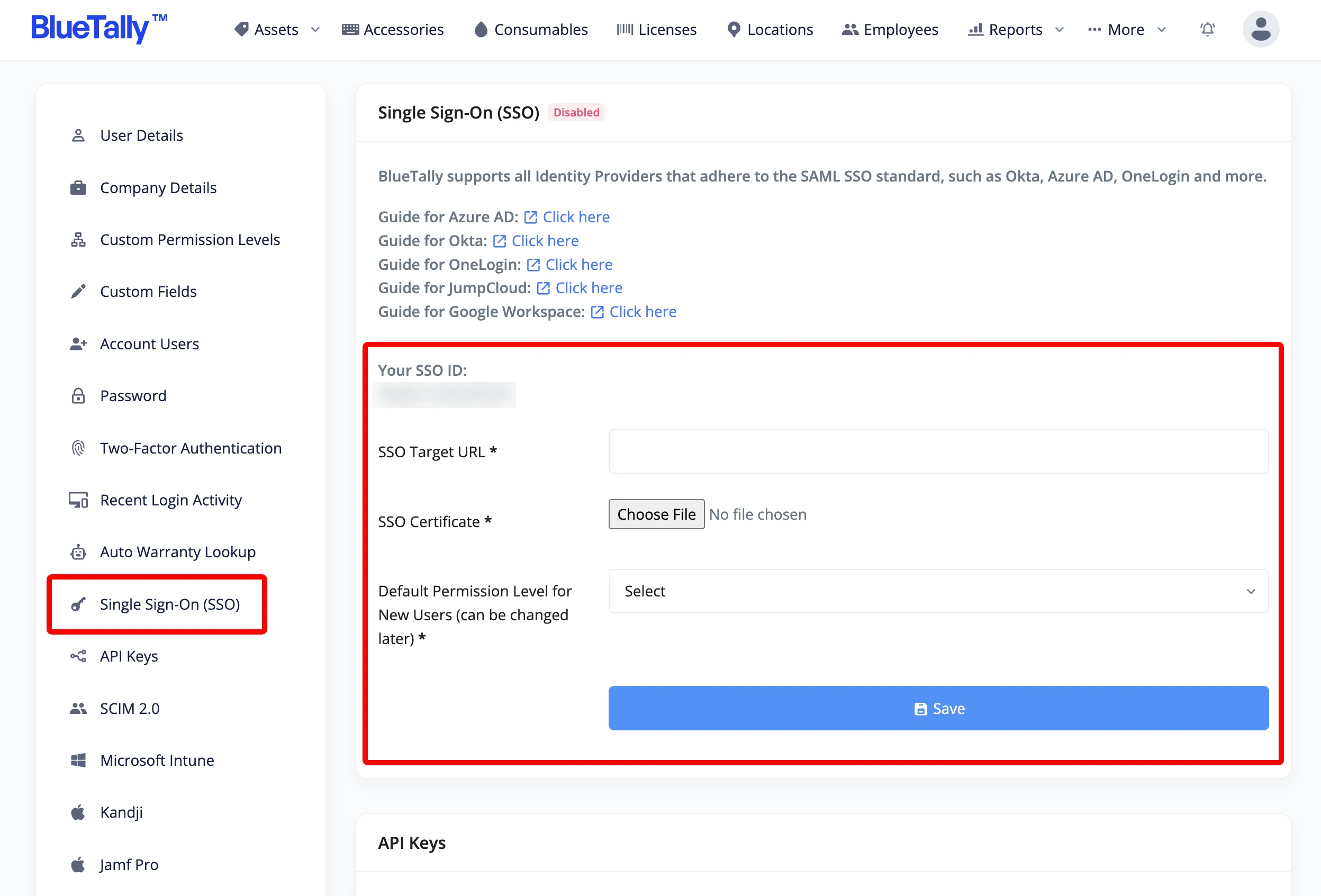
That's it! Once you upload these details into your account settings, we'll complete the setup on our end - this can take up to 24 hours. You'll receive an email when everything is ready.
Once SSO has been setup on your account, giving new users access to BlueTally will be done in the OneLogin application you just created. The same goes for removing user access. New users will only appear in the Account User list in BlueTally after they've signed in for the first time.
To learn more about how this integration works, please refer to our knowledge base article.
If you have any questions regarding this integration, please don't hesitate to reach out to us and we'll assist you with your setup!
Looking for OneLogin asset management features and benefits?
See our OneLogin Asset Management Integration page for a complete overview.
Try it free for 14 days
Try BlueTally free for 14 days — the IT asset management software trusted by top IT teams. No credit card required.


